Appearance
Files
.audica
The .audica file is a renamed .zip file packed with the store option. Audica will not read an .audica file that has any kind of compression.
.audica files are read from:
<Audica folder>/Audica_Data/StreamingAssets/HmxAudioAssets/songs/.cues
beginner.cuesmoderate.cuesadvanced.cuesexpert.cues
This is an optional json file containing the information for targets, repeaters, tempo and target speed.
The name of the cues file corresponds to the difficulty: beginner.cues for Beginner, moderate.cues for Standard, advanced.cues for Advanced and expert.cues for Expert.
To use cues files you need to specify false for useMidiForCues in the .desc file
json
{
    "cues": [
        {
            "tick": 3840,
            "tickLength": 60,
            "pitch": 40,
            "velocity": 20,
            "gridOffset": {
                "x": 0.0,
                "y": 0.0
            },
            "zOffset": 0.0,
            "handType": 2,
            "behavior": 0
        },
    ...
    ],
    "repeaters": [
        {
            "handType": 2,
            "tick": 3840,
            "tickLength": 7680,
            "pitch": 127,
            "velocity": 96
        },
    ...
    ],
    "tempos": [
        {
            "tempo": 128.0,
            "tick": 0
        },
    ...
    ],
    "targetSpeed": 1.0
}
cues
The cues are the targets
tick
The amount of MIDI ticks from the start of the song
tickLength
The length of the note. This should be set to 120 unless the target is a sustain
pitch
This is the [grid] location of the target. Valid values are from 0 to 83
velocity
The velocity value controls which sound the target will play when hit.
If you are using a custom drum kit this could be set to any value from 0-127, assuming the drum kit has a sound for that value.
Default drum kits that comes with the game (as well as the OST) uses only 6 velocity values:
| Velocity Value | Description |
|---|---|
| 1 | Chain start |
| 2 | Chain node |
| 3 | Melee percussion |
| 20 | Kick drum |
| 60 | Percussion |
| 127 | Snare drum |
gridOffset
x: The offset from the center point of the grid location of the target on the X axis
y: The offset from the center point of the grid location of the target on the Y axis
zOffset
The Z offset controls the depth of the target
handType
The hand used for the target.
| handType Value | Description |
|---|---|
| 0 | Either hand |
| 1 | Right hand |
| 2 | Left hand |
behavior
The type of target.
| Behavior Value | Description |
|---|---|
| 0 | Normal |
| 1 | Vertical |
| 2 | Horizontal |
| 3 | Sustain |
| 4 | Chain start |
| 5 | Chain node |
| 6 | Melee |
| 7 | Dodge |
repeaters
The repeaters are a copy/paste function. It does not serve any purpose in the game.
handType
The hand the repeater is saved on. The only valid values are 0, 1 and 2
tick
The amount of MIDI ticks from the start of the song
tickLength
The length of the repeater.
pitch
The pitch used to save this repeater. This should be a value between 102 and 127
velocity
This does not serve any purpose for repeaters
tempos
These are markers for bpm change. In the cues files they do not serve any other purpose than being useful for MIDI conversion. The BPM of the song is always read from the MIDI file regardless if using MIDI for cues or not.
tempo
The tempo of the marker
tick
The amount of MIDI ticks from the start of the song
targetSpeed
This controls the speed of the targets for the whole song. This value is multiplied by the in-game setting.
.mid
This file is a MIDI file.
The BPM information is required to be in the MIDI file, but the cues (targets) can be encoded either in the MIDI file or the cues file. You can specify if you're using MIDI or not in the song.desc file of the audica file.
Ticks Per Quarter Note
This is a midi setting that controls the length of the ticks.
Audica was programmed to use 480 ticks per quarter note, in other word, 1 beat in x/4 = 480 ticks. This setting is a must.
Tracks
The track name must be a "Track name" event at the very start of the song (1.1.0).
The bare minimum is 3 tracks of one difficulty.
| MIDI Track | Description |
|---|---|
| Expert Melee | Contains "either hand" targets for expert |
| Expert LH | Contains left hand targets for expert |
| Expert RH | Contains right hand targets for expert |
| Hard Melee | Contains "either hand" targets for advanced |
| Hard LH | Contains left hand targets for advanced |
| Hard RH | Contains right hand targets for advanced |
| Normal Melee | Contains "either hand" targets for standard |
| Normal LH | Contains left hand targets for standard |
| Normal RH | Contains right hand targets for standard |
| Easy Melee | Contains "either hand" targets for beginner |
| Easy LH | Contains left hand targets for beginner |
| Easy RH | Contains right hand targets for beginner |
| Community Melee | Contains "either hand" targets for a community map |
| Community LH | Contains left hand targets for a community map |
| Community RH | Contains right hand targets for a community map |
| sustain_intro | Something related to sustain sounds that was used in development, the game currently does not use this track |
| sustain_hard | Something related to sustain sounds that was used in development, the game currently does not use this track |
The community tracks are used on their own only, for the community maps function of the game.
Pitch
The pitch (note) controls the position of the targets on the grid sphere.
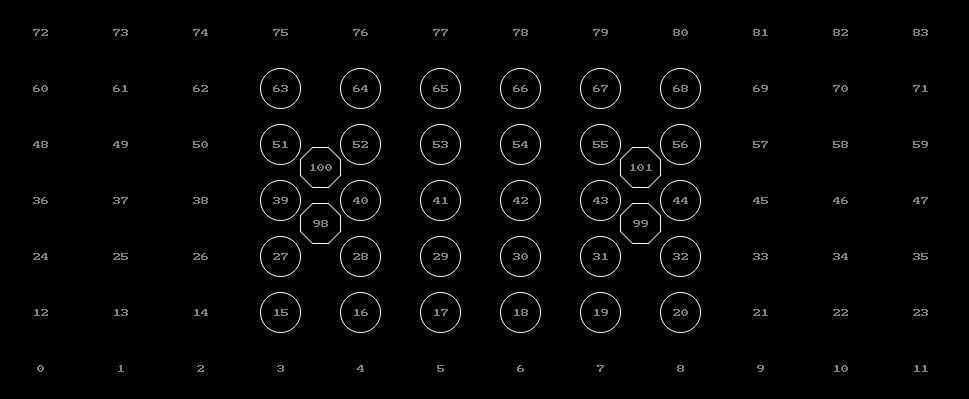
0-83 are spots on the grid while 98-101 are melee target spots.
There is also pitches 102-127 that are used for storing repeaters, a copy/paste function enabled by a REAPER Lua script provided by the game files. These pitches are not read by the game.
Channel
The channel controls the behavior of the target. This only affect the pitch, not the CC values.
This is assuming the channel system starts at 1. If you're not using REAPER the first channel could be 0, if that's the case then substract 1 of each of these channel values.
| Channel Value | Description |
|---|---|
| 1 | Regular target |
| 2 | Horizontal target |
| 3 | Vertical target |
| 4 | Chain start target |
| 5 | Chain node |
The sustain behavior is controlled with then length of the note. Any note with a length higher than 480 ticks (1 beat in x/4) will automatically be considered as a sustain.
The melee behavior is controlled with pitch, there are 4 pitch assigned to be melee targets, depending on the position.
Velocity
The velocity value controls which sound the target will play when hit.
If you are using a custom drum kit this could be set to any value from 0-127, assuming the drum kit has a sound for that value.
Default drum kits that comes with the game (as well as the OST) uses only 6 velocity values:
| Value | Description |
|---|---|
| 1 | Chain start |
| 2 | Chain node |
| 3 | Melee percussion |
| 20 | Kick drum |
| 60 | Percussion |
| 127 | Snare drum |
MIDI CC Data
Audica uses CC data to store grid offsets. These CC variables takes 0-127 as data.
| GP slider | Description |
|---|---|
| 16 | X axis offset |
| 17 | Y axis offset |
| 18 | Z axis affset |
| 19 | X axis big offset |
| 20 | Y axis big offset |
| 21 | Z axis big offset |
For the 3 first values (16, 17, 18) you have to set the value to the middle (63-64) to center the target in the grid point, so 64 is a tiny bit offset to the right while 63 is a tiny bit offset to the left on the X axis.
- X axis (16)
- 0-63 will nudge the target to the left, 0 being the highest left value, and 63 being the closest to the center
- 64-127 will nudge the target to the right, 127 being the highest right value, and 64 being the closest to the center
- Y axis (17)
- 0-63 will nudge the target to the bottom, 0 being the highest bottom value, and 63 being the closest to the center
- 64-127 will nudge the target to the top, 127 being the highest top value, and 64 being the closest to the center
- Z axis (18)
- 0-63 will nudge the depth of the target closer to you, 0 being the closest to you, and 63 being the closest to the default depth
- 64-127 will nudge the depth of the target further away, 127 being as far away as possible, and 64 being the closest to the default depth
The other 3 values (19, 20, 21) will add offset to the main offset values to cover pretty much the entire sphere, this makes it possible to author a 360 degree map/chart. These add the value to their respective axis minus 64, though instead of beind small nudges from the center of the pitch it will add or substract a full grid square.
Target Speed
It is possible to set the target speed in the MIDI file by adding a text event in the Right Hand track with targetSpeed 1.0. This value (1.0) will be multiplied with the in-game target speed setting.
.moggsong
This file is written in the Harmonix home language often called DTA because of the rock band dta files.
This file controls a mogg file.
The game uses 5 .moggsong files:
song.moggsong
This controls the main audio file This is a stereo track
song_extras.moggsong
This controls the extras audio file which mostly contrains the count-in played before targets appear
This is a stereo track
This track is optional
song_sustain_l.moggsong
This controls the left sustain audio file
This is a mono track
This track is optional
song_sustain_r.moggsong
This controls the right sustain audio file
This is a mono track
This track is optional
song_finale.moggsong
This is the audio for the campaign finale
This is a stereo track
This track is only used for the song "addictedtoamemory"
(mogg_path "addictedtoamemory.mogg")
(midi_path "addictedtoamemory.mid")
(tracks
   (
      (mix (0 1) event:/gameplay/song_audio)
   )
)
;
(pans  (-1   1))
(vols  (0   0))
mogg_path
The name of the mogg file
midi_path
The name of the MIDI file
tracks
mix: This line controls the mix. (0 1) is used for stereo files and (0) for mono files. Sustain audio files are mono, the rest are stereo.
pans
Controls the pan values. One value per channel.
vols
Controls the volume values. One value per channel.
.mogg
This is a multi-track ogg file, used in Harmonix games. The official .mogg files that are released by Harmonix are encrypted.
The only difference with an ogg file is the header.
These files are created using ogg2mogg.
ogg2mogg input_file.ogg output_file.moggThe game uses 5 .mogg files:
song.mogg
Contains the main audio (the song)
This is a stereo track
song_extras.mogg
Contains the count-in (countdown before targets appear) and can contain other sound effects during the song
This is a stereo track
This track is optionnal
song_sustain_l.mogg
Contains the distorted sound effect for the left gun
This is a mono track
This track is optionnal
song_sustain_r.mogg
Contains the distorted sound effect for the right gun
This is a mono track
This track is optionnal
song_finale.mogg
`Contains the music/sound effect for the campaign final
This is a stereo track
This track is only used for the song "addictedtoamemory" which is the campaign finale.
Converting to .ogg
It is possible to convert an .mogg file to .ogg by removing the header. Note that this will not work with official Harmonix .mogg files
Byte 4 is a 4byte little endian number, this number is the address of where the ogg file actually starts. You can then delete everything before that address and you end up with an .ogg file.
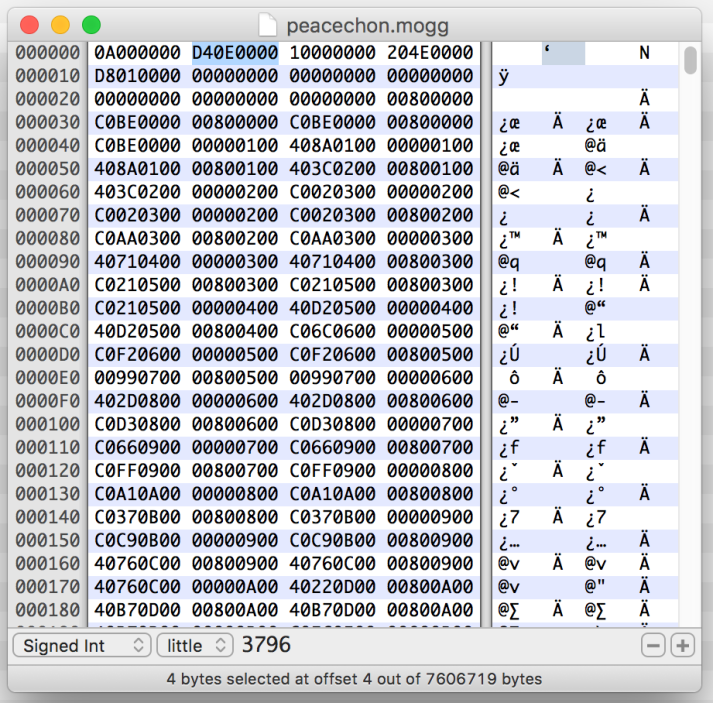
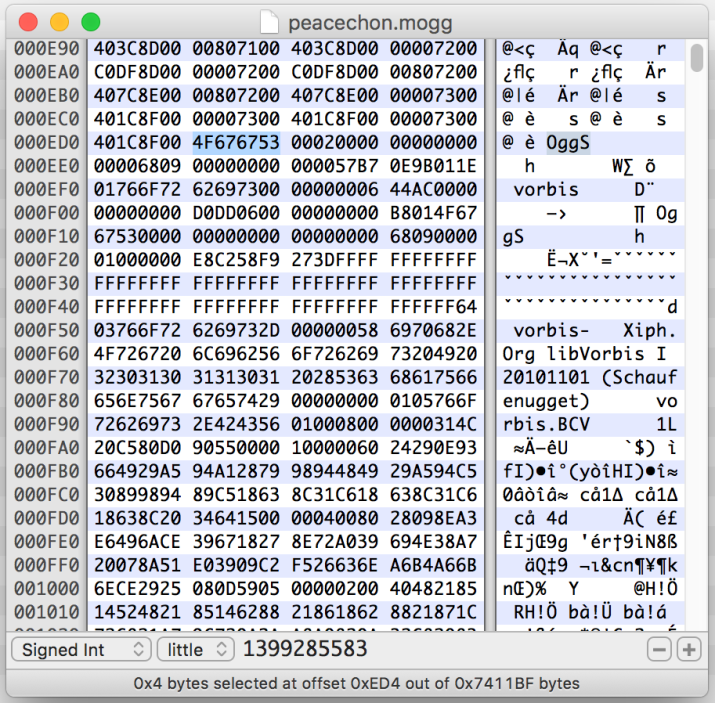
In this example the .ogg file starts at 0xED4.
Thanks to Onyxite for this information and the ogg2mogg software.
.desc
This is a json file that contains all the metadata. This file must be named song.desc.
json
{
  "songID": "addictedtoamemory",
  "moggSong": "addictedtoamemory.moggsong",
  "title": "Addicted To A Memory",
  "artist": "Zedd ft. Bahari",
  "author": "",
  "midiFile": "addictedtoamemory.mid",
  "targetDrums": "fusion/target_drums/destruct.json",
  "sustainSongRight": "addictedtoamemory_sustain_r.moggsong",
  "sustainSongLeft": "addictedtoamemory_sustain_l.moggsong",
  "fxSong": "addictedtoamemory_extras.moggsong",
  "songEndEvent": "event:/song_end/song_end_C#",
  "highScoreEvent": "event:/results/results_high_score_C#",
  "songEndPitchAdjust": 0.0,
  "prerollSeconds": 0.5,
  "previewStartSeconds": 61.2239990234375,
  "useMidiForCues": false,
  "hidden": false
}
songID
Unique ID of the song
moggSong
The name of the moggsong file that controls the main mogg file
title
Name of the song
artist
The artist that created this song
author
The name of the person who created the map/chart If this field is empty, the "Mapper" field on the song's button will not show up.
midiFile
The name of the MIDI file
targetDrums
The location of the drum kit metadata file
sustainSongRight
The name of the moggsong file that controls the right sustain mogg file
This file is optionnal, you can remove the value and have "" as the string value if you do not wish to use this file
sustainSongLeft
The name of the moggsong file that controls the left sustain mogg file
This file is optionnal, you can remove the value and have "" as the string value if you do not wish to use this file
fxSong
The name of the moggsong file that controls the extras mogg file
This file is optionnal, you can remove the value and have "" as the string value if you do not wish to use this file
songEndEvent
The event played at the end of the song
highScoreEvent
The event played at the high score popup
songEndPitchAdjust
Adjustment value for the pitch used for the end event
prerollSeconds
Amount of time to wait before starting the song; this does not affect audio
previewStartSeconds
The time in seconds when the song preview starts
useMidiForCues
If set to True, the game will load cues from the MIDI file instead of the cues files
hidden
If set to True, song will be hidden. This is only used for the tutorial song
Old values
These values are no longer used by the game. If you find those, you are looking at an old song.desc file. All the OST songs were updated with the new targetDrums.
fusionSpatialized
Location of the spatial fusion file
fusionUnspatialized
Location of the sub fusion file
extrafriends.json
This file is for storing cross-platform friends. Not available for PSVR.
json
{
    "friends": [
        {
            "leaderboard_friend_id": "44fcf4a6-6566-4a61-92e7-2d645db60e5f",
            "name": "CoachTony"
        },
        ...
    ]
}
On PC this file is stored in AppData\LocalLow\Harmonix Music Systems, Inc_\Audica. You can find your own friend code in the game just by using the Copy function in Settings > Friends.
On Quest this file is stored in PC\Quest\Internal shared storage\Android\data\com.harmonixmusic.kata\files. Currently the only ways to get your friend code is either the PC method using the Rift version of the game, or join the Modding Discord Server, go in the #leaderboards channel and use the .findfriendcode "your_username" command (quotes are only necessary if the username contains spaces). The requested friend code will only show up if the player has played at least one song.